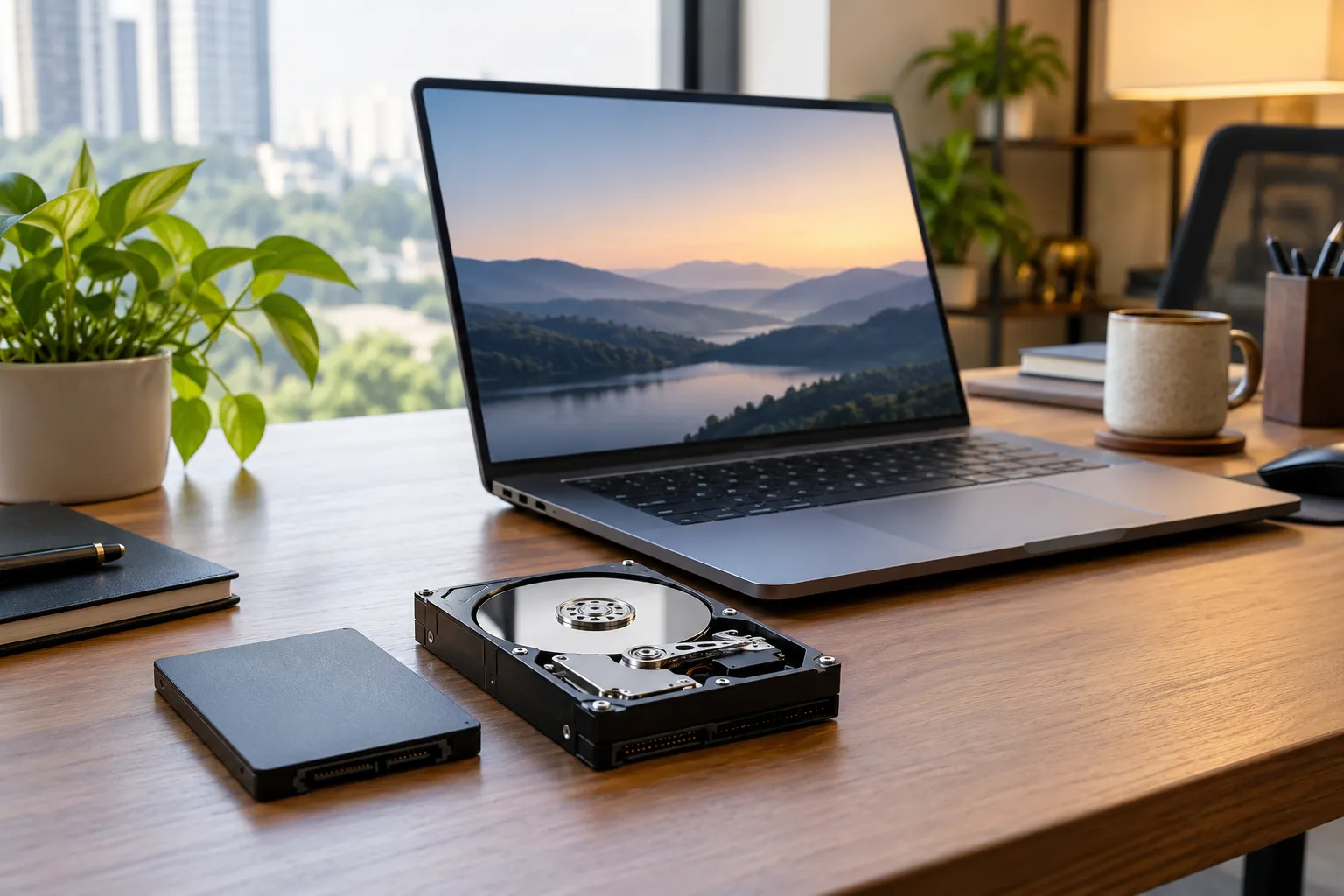
For most rentals, you should choose an SSD laptop. In an SSD vs HDD laptop comparison, an SSD gives you faster startup, quicker app loading, better responsiveness and fewer mechanical parts. An HDD still makes sense for large, low-cost storage, but for office work, study, development, meetings and corporate deployment, SSD storage is now the practical default.
What changes between SSD and HDD?
An SSD, or solid-state drive, stores data in flash memory without spinning mechanical parts. An HDD, or hard disk drive, reads data from spinning magnetic platters. That design difference affects startup time, file access, noise, durability, power use and how responsive a rented laptop feels during normal work.
| Factor | SSD | HDD |
| System startup | Much faster | Slower |
| App loading | Fast | Noticeably slower |
| Moving parts | No | Yes |
| Noise | Silent | May produce mechanical noise |
| Shock resistance | Better suited to portable use | More sensitive to bumps |
| Cost per GB | Higher | Lower |
| Best laptop use | Operating system, applications, active work | Large archives and low-cost bulk storage |
Intel explains that SSDs provide faster random access, lower latency and quicker application loading than mechanical HDDs. It also highlights how modern laptops increasingly rely on SSD storage for better performance. You can learn more in Intel's SSD and HDD storage guide.
That is why storage type matters even when two rental laptops have similar processors and RAM. A Core i5 laptop with sufficient RAM can still feel slow if Windows and your applications are running from an HDD.
Takeaway: For a laptop you will actively work on every day, SSD storage matters more than simply choosing the largest storage number.
How much faster is an SSD?

An SSD can make a major difference to tasks that repeatedly access storage, including booting Windows, opening applications, loading project files and installing updates. CPU and RAM still matter, but faster storage removes one of the biggest bottlenecks found in older HDD-based laptops.
According to HP India's storage performance guidance, HDD-based systems typically take around 60 to 120 seconds to boot, compared with 10 to 25 seconds for SSD systems. HDD transfer speeds generally range from 80 to 160 MB/s, while SATA SSDs can exceed 500 MB/s, with NVMe SSDs offering even higher speeds. Actual performance varies by device and configuration.
For rental users, this difference becomes noticeable when several employees repeatedly start laptops, open browsers, launch Office applications, compile code or load creative files.
Does storage change rental cost?
Yes, but storage is only one part of laptop rental pricing. Rentlap's visible catalogue shows SSD-equipped Windows laptops covering a broad price range, from everyday configurations to high-performance machines. CPU generation, RAM, GPU, storage size, model value, duration, and availability all influence the final rental amount.
| Rental category | Current indicative Rentlap range |
| Everyday and business SSD laptops | About ₹1,999 to ₹4,999 per month |
| Performance and creative SSD laptops | About ₹3,499 to ₹24,999 per month |
| MacBook rentals | About ₹2,999 to ₹19,999 per month |
For example, current Rentlap listings include several 512GB SSD business laptops around ₹2,199 to ₹2,699 per month, while premium GPU laptops with 1TB or 2TB SSD storage cost considerably more. Current MacBook listings also use SSD storage across the range.
This means you should not compare rental prices using storage alone. A 512GB SSD business laptop can cost less than another 512GB SSD model because its processor, GPU, display, age or other specifications differ.
Rentlap's published terms also state that pricing can change based on device type, configuration, rental duration, quantity, customer type, location and availability.
For a deeper pricing comparison, see Rentlap's monthly laptop rental versus daily rental cost guide.
What SSD capacity should you rent?
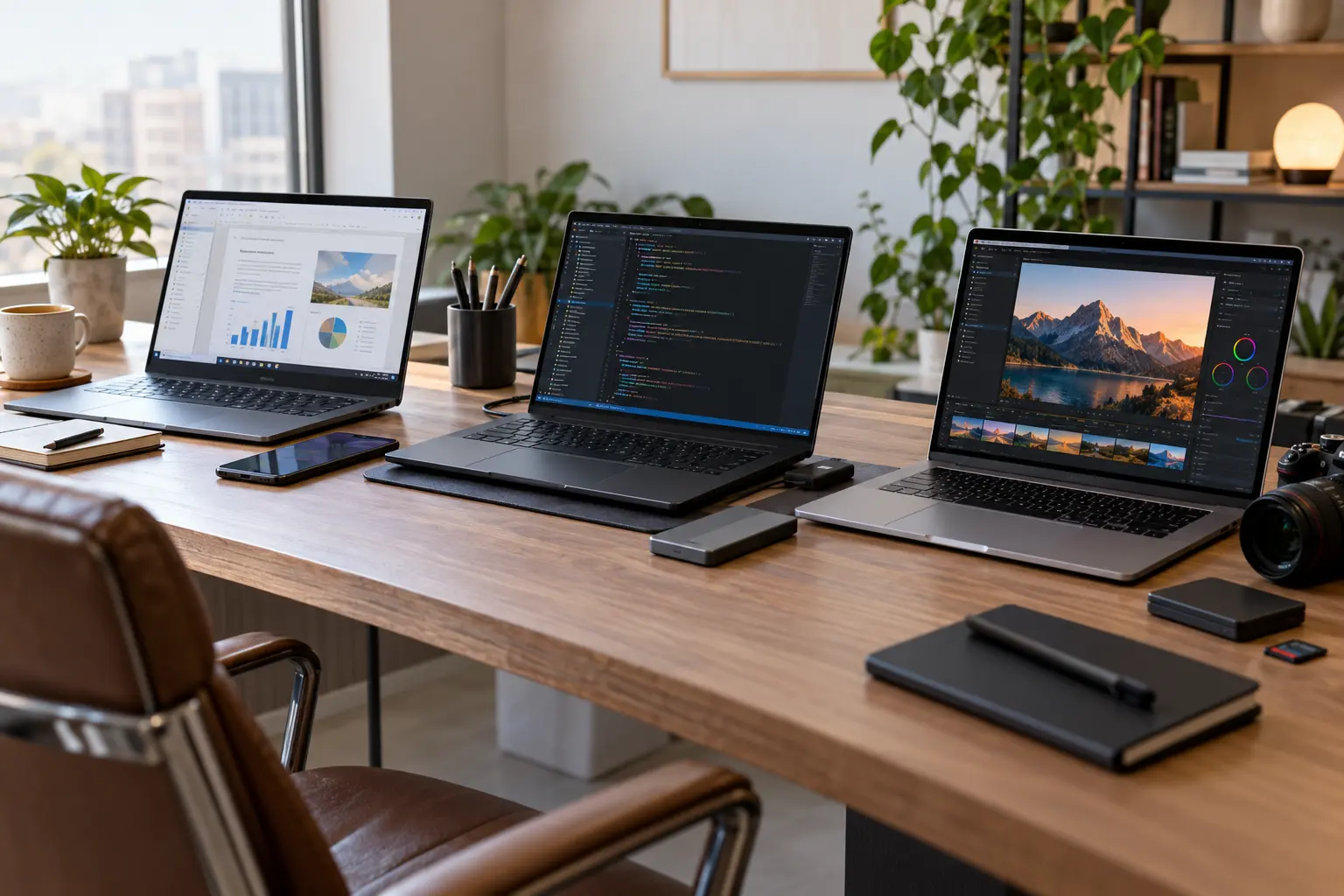
For most people, 512GB SSD storage is the safest default. A 256GB SSD works for basic office work, classes and cloud-based workflows. A 512GB drive gives more room for software and project files, while 1TB or more becomes useful for video editing, development environments, large datasets, games and creative projects.
A practical rental guide is:
- 256GB SSD: Browsing, Office, online classes, CRM access and cloud-first work.
- 512GB SSD: Corporate users, developers, freelancers, students and general professional work.
- 1TB SSD: Designers, video editors, developers using large local environments and users handling large project files.
- 2TB SSD or more: High-end creative, engineering, AI, gaming and specialist workloads.
Storage capacity also affects how easily you can manage the laptop during a longer rental. A very small drive may look cheaper, but regularly moving files to external storage can become inconvenient.
Is NVMe worth choosing on rent?
NVMe is worth choosing when storage speed is part of the workload. NVMe SSDs use PCIe connectivity and generally offer higher throughput than older SATA SSDs. For normal browsing and Office work, either SSD type can feel responsive. For development, large files, creative applications and heavier workloads, NVMe is the better rental choice.
HP's current laptop guidance describes NVMe SSDs as significantly faster than SATA SSDs, while current Rentlap products include several PCIe and NVMe configurations from 512GB through 2TB.
Modern laptops increasingly use SSD storage for better performance. According to Apple's MacBook Air specifications, the 2026 MacBook Air with M5 starts with 512GB SSD storage, configurable up to 4TB. Similarly, Dell's Pro 14 range offers 256GB to 2TB PCIe NVMe SSD options. If you prefer using a high-performance laptop without purchasing one, explore Rentlap's MacBooks on rent for flexible rental options.
These current systems show why HDD capacity should no longer be the main benchmark when selecting a modern rental laptop.
Who should rent an SSD laptop?
Almost everyone renting a laptop for active daily use benefits from SSD storage. If you are searching for an SSD laptop on rent or a fast laptop rental, match the SSD capacity with your workload instead of selecting the highest capacity automatically.
Corporate and office teams: A 16GB RAM laptop with a 512GB SSD is a practical starting point for browser-heavy work, Microsoft 365, CRM platforms, meetings and business software.
Students: A 256GB SSD can be enough for classes and assignments, especially with cloud storage. A 512GB model gives more flexibility for coding tools, project files and downloaded course material.
Freelancers and remote professionals: A 512GB SSD usually balances storage, speed and rental cost well.
Developers: Consider at least 512GB. Choose 1TB if you use virtual machines, Docker images, large repositories or local development databases.
Designers and video editors: Look for 1TB NVMe SSD storage together with enough RAM and a suitable GPU.
You can compare available configurations on Rentlap's laptops for rent page.
When does an HDD still make sense?
An HDD still makes sense when capacity matters far more than speed. Large archives, backups, raw media libraries and infrequently accessed files can be stored economically on an HDD, particularly as external or secondary storage. It is much less attractive as the main drive of a laptop you use throughout the working day.
If an older rental laptop is offered with an HDD, ask whether the operating system is installed on an SSD and the HDD is only being used for secondary storage.
For most rental users, a smaller SSD laptop plus external storage is likely to provide a better working experience than an HDD-only laptop with more internal capacity.
What should businesses check before renting?
Businesses should consider more than the monthly rental price. Storage performance, security deposits, delivery timelines and return conditions can affect the overall rental experience.
1. Check Storage Type: Confirm whether the laptop has a SATA or NVMe SSD. NVMe is generally better for demanding workloads.
2. Understand the Deposit: Security deposits vary by laptop model, configuration and rental terms. Check Rentlap's security deposit policy before booking.
3. Review Damage Coverage: Understand which types of damage are covered and what charges may apply during the rental period.
4. Complete KYC Verification: Keep the required identity and business documents ready to avoid unnecessary delays.
5. Confirm Delivery Timelines: Delivery depends on device availability, location and verification. Confirm the expected date before placing your order.
6. Choose the Rental Duration: Select a rental period that matches your project or business needs and confirm the extension terms.
7. Secure Your Data: Back up important files, sign out of accounts and remove personal information before returning the laptop.
For corporate or bulk requirements, ask for a quotation based on quantity, required SSD capacity, RAM, processor class, rental duration and delivery locations.
Which SSD vs HDD laptop should you rent?
For most people comparing an SSD vs HDD laptop, choose the SSD model. A 512GB SSD is the best general-purpose starting point for business, professional and student rentals, while 1TB NVMe makes more sense for development, design, video, engineering and high-performance applications.
HDD storage still has value for inexpensive archives, but it should rarely be your first choice for the system drive of a rental laptop in 2026.
If you need one device or a bulk deployment, get a rental quote from Rentlap based on the processor, RAM, SSD capacity, duration, quantity and delivery location you actually need. This gives you a more useful cost comparison than choosing a device purely because it advertises more storage.
Frequently Asked Questions About SSD vs HDD Laptop
Choosing between an SSD and HDD can affect your laptop's speed, storage capacity and rental cost. Here are answers to common questions about SSD vs HDD laptops to help you choose the right storage option for work, study or everyday use.
1. Is SSD better than HDD in a laptop?
Yes, SSDs offer faster startup, quicker app loading, quieter operation and better durability. HDDs are useful for storing large files at a lower cost. For rental laptops used for work, study or coding, SSD storage is the better choice.
2. Is 256GB SSD enough for rental?
A 256GB SSD is suitable for browsing, office applications, online classes and cloud-based work. However, if you use development tools, creative software or store large files, a 512GB SSD offers more flexibility.
3. Is 512GB SSD enough for work?
Yes, 512GB SSD storage is sufficient for most office tasks, coding, freelancing and student projects. For video editing, large development environments or heavy creative workloads, a 1TB SSD may be more suitable.
4. Does SSD make a laptop faster?
Yes, an SSD improves boot times, application loading and file transfers. While it doesn't increase CPU or RAM performance, it makes everyday tasks feel faster and more responsive than an HDD.
5. Is NVMe better than SATA SSD?
NVMe SSDs offer faster data transfer speeds than SATA SSDs, making them suitable for coding, video editing and demanding applications. However, SATA SSDs still provide good performance for everyday office work and browsing.
6. Are SSD laptops costlier to rent?
Not always. Rental pricing depends on the processor, RAM, storage capacity, laptop model and rental duration. Many business laptops with SSD storage are available at affordable monthly rates compared with premium gaming or workstation models.
7. Can I store personal data on rental laptops?
Yes, you can store work files and personal data during the rental period. Before returning the laptop, back up important files, sign out of accounts and remove personal information to protect your privacy.